![AuctionNinja-Standard Logo-2.png]](https://support.auctionninja.com/hs-fs/hubfs/AuctionNinja-Standard%20Logo-2.png?height=31&name=AuctionNinja-Standard%20Logo-2.png)
Stripe is a cost effective, easy-to-use payment processor. First, you need to make sure you create a stripe.com account. After you create your account, you can start integration.
CLICK HERE to register.
Using stripe means knowing how to secure your stripe.com account.
CLICK HERE to learn how to configure your security settings in stripe.
Collect Info:
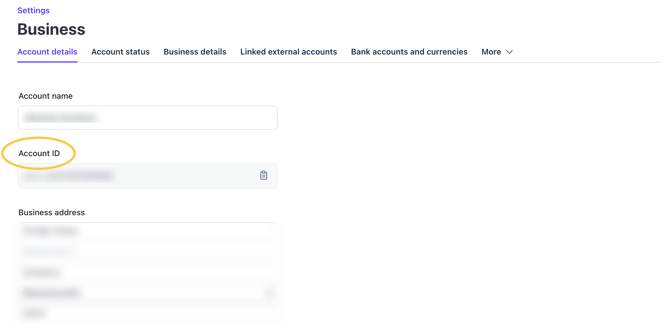
You need to have your Account ID info before you start the integration process.
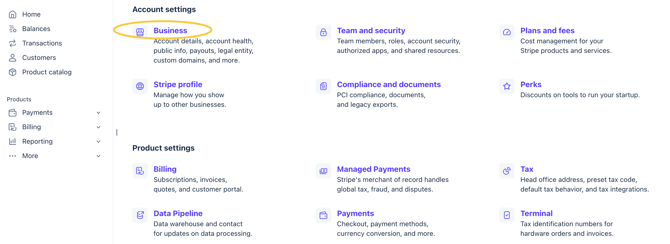
Select: Settings

Under account settings, select business.
Navigate to Account ID:
Enable Access:
You created your stripe account, now it's time to configure stripe to allow integration with AuctionNinja.
Step 1:
Open the Help icon in your Stripe Dashboard. The support assistant will appear on the right-hand side.

Step 2:
Under “What’s your question?”, select or type:
Request to enable raw card data APIs
Include your account number in the message.
Step 3:
In the message box, enter:
I would like to request that Stripe enable raw card data APIs for my account.
Step 4:
Add THIS DOCUMENT to your message.
Step 5:
Click Send Email
Approval will take around 72 hours.
Step 6:
API Keys
Once you're approved by stripe, log into your stripe.com account.
Go to Account, API Keys.
YOU WILL NEED:
Publishable Key
Create Secret Key
Both of these will be copy and pasted into AuctionNinja.
Tip: If your stripe.com account is in test mode, it will not work.
Step 7:
Test stripe API
Back in the AuctionNinja seller portal (back-end), go to:
Settings → Payment Processing
After your keys are in place, your phone number is verified, and you completed the integration requirements, select: “Test Stripe API.”

This will require you to input a credit card number.
Expect a test hold of $1 (this will be released automatically).
After that, the green check mark icon will appear next to API Test at the top of the page.
Once you see the green checkmark, you're ready to go!
FOR HELP:
Stripe may prompt you to upload verification documents directly to your account. Please do *not* add AuctionNinja as a team member on your Stripe account. Once you see the request for documentation, we’ll be happy to assist you with submitting the required information if you need help.
If you need help, please email rp@auctionninja.com
|
|
YOU MUST ENABLE STRIPE RADAR AND AVS MATCH.
CLICK HERE to learn how to secure your stripe account. |